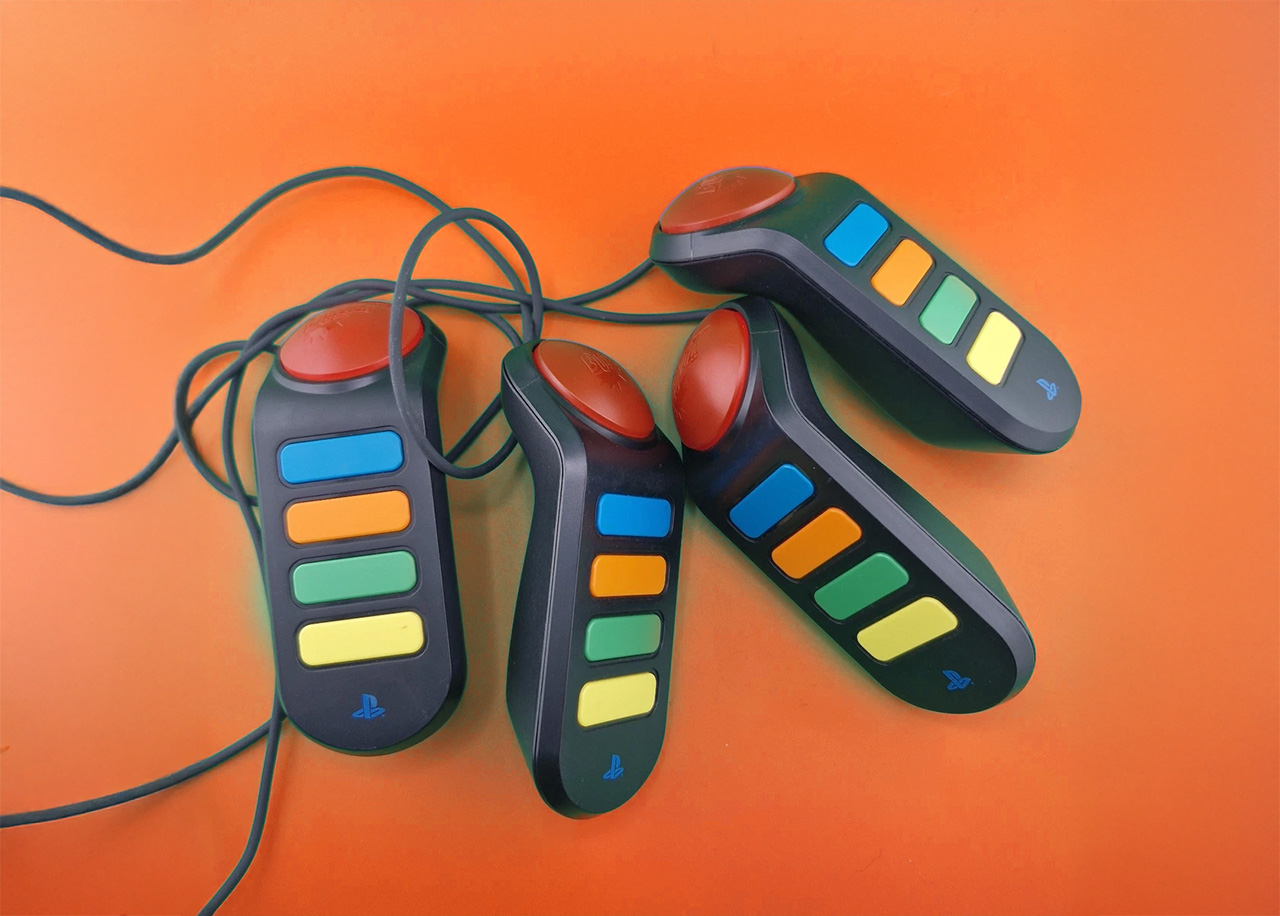
How to Connect Buzz Controllers on PC: Complete Setup Guide
Want to know how to connect Buzz controllers on PC? Whether you have wired or wireless controllers from the PS2 or PS3 era, this comprehensive guide will help you get them working on your computer in minutes. Let's cover everything from how to pair Buzz controllers to troubleshooting common issues.
What You'll Need
- Your Buzz controllers (wired or wireless)
- USB dongle (for wireless controllers)
- A PC with available USB ports
- A modern web browser (Chrome, Firefox, or Edge)
How to Use Buzz Controllers on PC: Step-by-Step
For Wired Buzz Controllers
- Locate your USB cable: Wired Buzz controllers come with an attached USB cable that connects all four controllers.
- Plug into your PC: Insert the USB connector into any available USB port on your computer.
- Wait for detection: Your operating system should automatically recognize the controllers (no drivers needed).
- Verify connection: Visit the Connection Test page on BuzzControllers.com to confirm they're working.
How to Pair Buzz Controllers (Wireless)
- Insert batteries: Each wireless controller requires 2 AA batteries.
- Connect the USB dongle: Plug the wireless receiver into your PC's USB port.
- Power on controllers: Press any button on the controller to turn it on.
- Automatic pairing: The controller should automatically connect to the dongle (LED indicator will stop flashing).
- Test the connection: Use the Connection Test to verify all buttons work correctly.
How to Connect Buzz Controllers on PC: Browser Setup
Once your controllers are physically connected, here's how to use Buzz controllers on PC with BuzzControllers.com:
- Open your preferred web browser
- Navigate to BuzzControllers.com
- Click on "Connect Buzz Controller"
- Select your controller from the popup dialog
- Click "Connect" and wait for confirmation
- Start playing any of the available game modes!
Troubleshooting Connection Issues
Controllers Not Detected
- Try different USB ports: Some USB 3.0 ports may have compatibility issues—try USB 2.0 ports instead.
- Avoid USB hubs: Connect directly to your PC's built-in USB ports.
- Check for damage: Inspect the USB connector and cable for any visible damage.
- Restart your browser: Close and reopen your browser, then try connecting again.
Wireless Controllers Won't Pair
- Replace batteries: Low battery power can cause pairing issues.
- Reset the dongle: Unplug and replug the USB receiver.
- Move closer: Ensure controllers are within range of the dongle during initial pairing.
- Check for interference: Other wireless devices may cause signal issues.
Button Lag or Unresponsive Buttons
- Close background applications: Free up system resources for better performance.
- Update your browser: Ensure you're using the latest browser version.
- Clean the controllers: Dust and debris can affect button responsiveness.
Operating System Compatibility
Buzz controllers work on all operating systems (Windows, macOS, Linux, Chrome OS, and more). Compatibility depends on your browser's HID (Human Interface Device) support, which is available in most modern browsers including Chrome, Edge, Opera, and others.
Pro Tips for the Best Experience
- Test before events: Always verify your setup before hosting a quiz night.
- Keep spare batteries: Essential for wireless controllers during long sessions.
- Use a USB extension: Helpful if your PC is far from the play area.
- Bookmark the connection test: Quick access for troubleshooting.
Conclusion
Now you know how to connect Buzz controllers on PC and how to pair Buzz controllers for both wired and wireless setups. With BuzzControllers.com, getting your Buzz controllers for PC working is straightforward and hassle-free. Ready to start your quiz night? Head over to our game modes and let the fun begin!