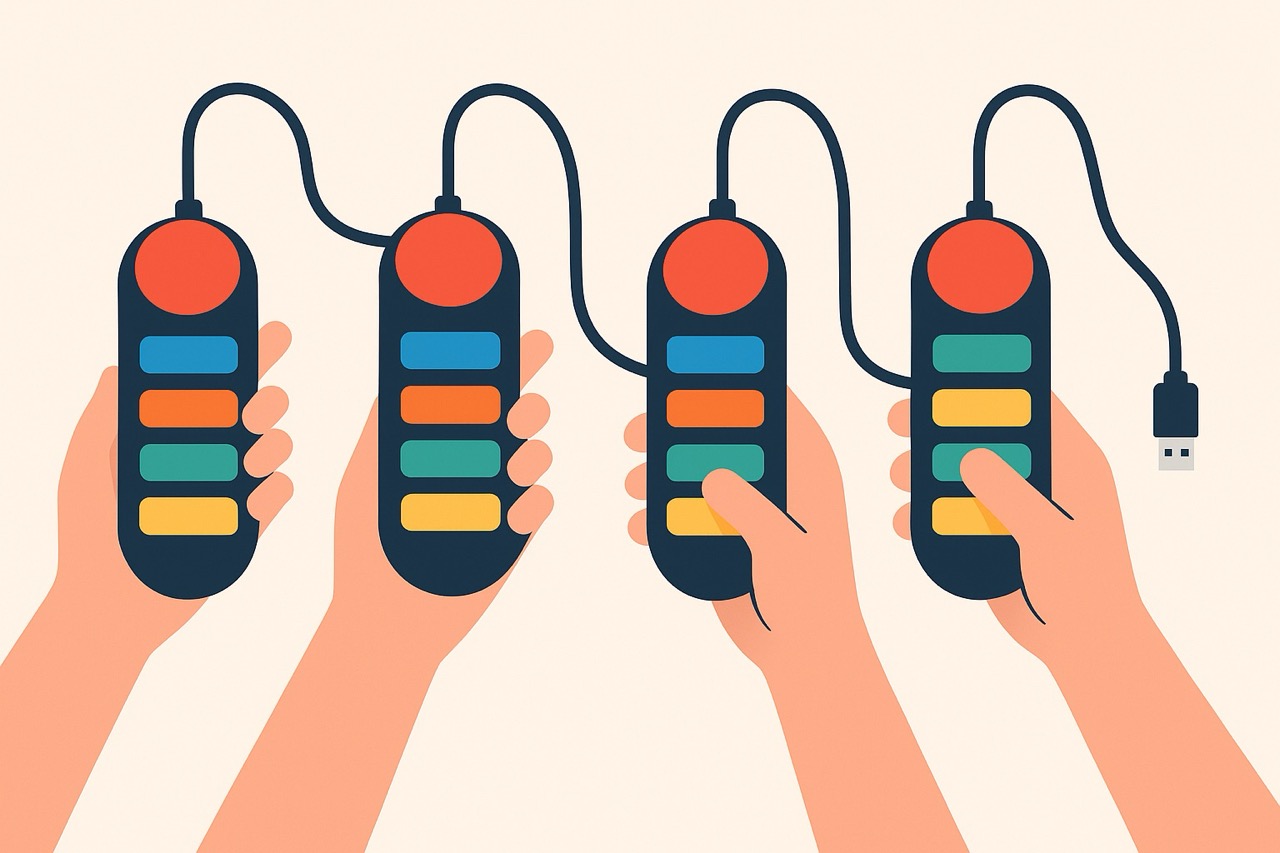
Revision quizzes on paper work, but they rarely get a class on the edge of their seats. Physical buzzers do. When a team has to agree on an answer and race to press a big red button, even quiet students lean in. With a set of old PlayStation Buzz! controllers and the classroom computer, you can run buzzer quizzes in the classroom without buying a dedicated buzzer system.
Why Buzzers Work in Class
- Teams talk about the answer: With one buzzer per team, students have to agree before they press, which gets them explaining their thinking to each other.
- Fair, visible results: The screen shows exactly who buzzed first, so there are no "we were first!" arguments.
- Quick to set up: Everything runs in the web browser. There's nothing to install on school computers.
- Your own content: Type in the questions for today's topic, so the game fits the lesson instead of the other way round.
What You Need
- One set of PS2 or PS3 Buzz! controllers (wired, or wireless with the USB receiver). One set = 4 buzzers, so you'll usually play with 4 teams.
- A Windows or Mac computer connected to the projector or interactive whiteboard.
- Desktop Chrome, Edge or Opera. Safari, Firefox, phones and tablets can't connect to the controllers.
- Access to the game modes (see pricing; the lifetime plan means no renewals to manage).
Setup Before the Lesson
- Run the free connection test. Plug the controllers straight into the computer and open the connection test. Click "Connect Buzz Controller", choose the Buzz device in the browser pop-up and press a few buttons. On school-managed computers, IT settings can sometimes block USB access in the browser, so test once before the lesson.
- Open the game modes with the access link from your email, go to Settings and connect the controllers.
- Name the teams. Give each buzzer a team name (for example "Team Red" or the names of four scientists you're studying). The name pops up when that team buzzes.
- Choose sounds. Pick a sound for each buzzer. The Animals and Instruments packs are a safe bet for school. Check the Memes pack before using it in class, as some sounds aren't meant for students.
- Add your questions. Open Quiz Show, click Settings and type your questions. They're saved in this browser on this computer, so enter them on the computer you'll teach with.
Best Game Modes for Teachers
Quiz Show for revision
Quiz Show is the main event. Each game picks up to 10 of your questions in random order and shows them big on screen. The first team to buzz has 10 seconds to answer. Click Correct for a point, or Incorrect to lock that team out so the others can try. The scoreboard updates automatically. Keep your answer key on paper, since the app shows the question only.
First Press for quick-fire questions
Don't want to type anything? Use First Press. Ask a question out loud (spelling words, times tables, vocabulary, dates) and the screen shows which team buzzed first, plus the time gap for the others. Keep score on the board and click "Reset Round" before the next question.
Simon Says or Button Masher for a brain break
Simon Says shows a sequence of colored buttons that gets longer each round, and the teams take turns repeating it. Choose easy, medium or hard. Button Masher is 10 seconds of pure button pressing. Either one gives a restless class a two-minute reset before the next round.
Ready-to-Use 45-Minute Revision Lesson
- 5 minutes, teams and rules. Split the class into 4 teams. Each team picks a "buzzer captain" who changes every question. Rule: the team must agree before pressing.
- 12 minutes, Quiz Show round 1. 10 questions on the topic. After each answer, take 20 seconds to ask another team why it's right or wrong.
- 5 minutes, short recap. Go back over the two questions most teams missed.
- 3 minutes, brain break. One game of Button Masher or Simon Says.
- 12 minutes, First Press speed round. Quick-fire questions read out loud, scored on the board.
- 8 minutes, wrap-up. Final scores, then students write down one thing they'll revise again tonight.
Example: 10 science revision questions (ages 11 to 14)
- What gas do plants take in from the air for photosynthesis? (Carbon dioxide)
- What is the chemical symbol for sodium? (Na)
- What is the boiling point of water at sea level in °C? (100 °C)
- Which organ pumps blood around the body? (The heart)
- What force pulls objects towards the Earth? (Gravity)
- What do we call an animal that eats only plants? (A herbivore)
- Which planet is closest to the Sun? (Mercury)
- What is the unit of electrical resistance? (The ohm)
- What are the three states of matter? (Solid, liquid, gas)
- What part of a plant cell contains chlorophyll? (The chloroplasts)
Classroom Tips
- Rotate the buzzer. Pass the controller to the next student on the team after every question, so one fast student doesn't play the whole game.
- Use a short wired set for front-of-class games, or a wireless set so teams can sit at their own tables.
- Give a pause rule. No buzzing until you've finished reading the question. A team that buzzes early gets locked out by clicking Incorrect.
- Prepare several 10-question sets. A game uses up to 10 questions. For a new round on another topic, use "Clear All" and type in the next set.
- Celebrate good wrong answers. A sensible wrong answer that the class can learn from is worth a mention.
Planning a class party? Our kids' party games work in the classroom too. For a deeper look at quiz formats, read quiz software with buzzers.
FAQs
- How many students can play? One set has 4 buzzers. With a full class, make 4 teams and rotate who holds the buzzer.
- Will it work on our school computers? It runs in desktop Chrome, Edge or Opera on Windows or Mac, with nothing to install. If the browser pop-up to pick the controller doesn't appear, IT may have restricted USB access in the browser. The free connection test shows you quickly.
- Can I use it on an iPad or a tablet? No. Tablets and phones can't connect to the controllers. Use a laptop or desktop computer.
- Can I add my own questions? Yes. Type them into Quiz Show's settings. They stay saved in that browser on that computer.
- Do the students need accounts? No. Only the teacher needs access. Students just press the buzzers.